Network spans forwarding
Diagnosing network errors doesn't need to be an opaque process with finger-pointing between teams. Network spans forwarding sends your network telemetry data to third-party observability platforms, letting you trace every network call from your mobile or web app to your backend systems for complete end-to-end visibility.
How it works
Embrace automatically adds a unique identifier to every network request your app makes using w3c traceparents. This makes it possible to trace the same request in the Embrace User Timeline and in your backend monitoring service.
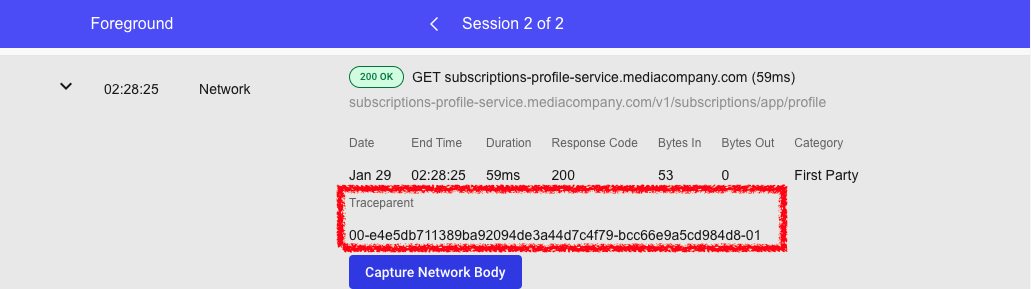
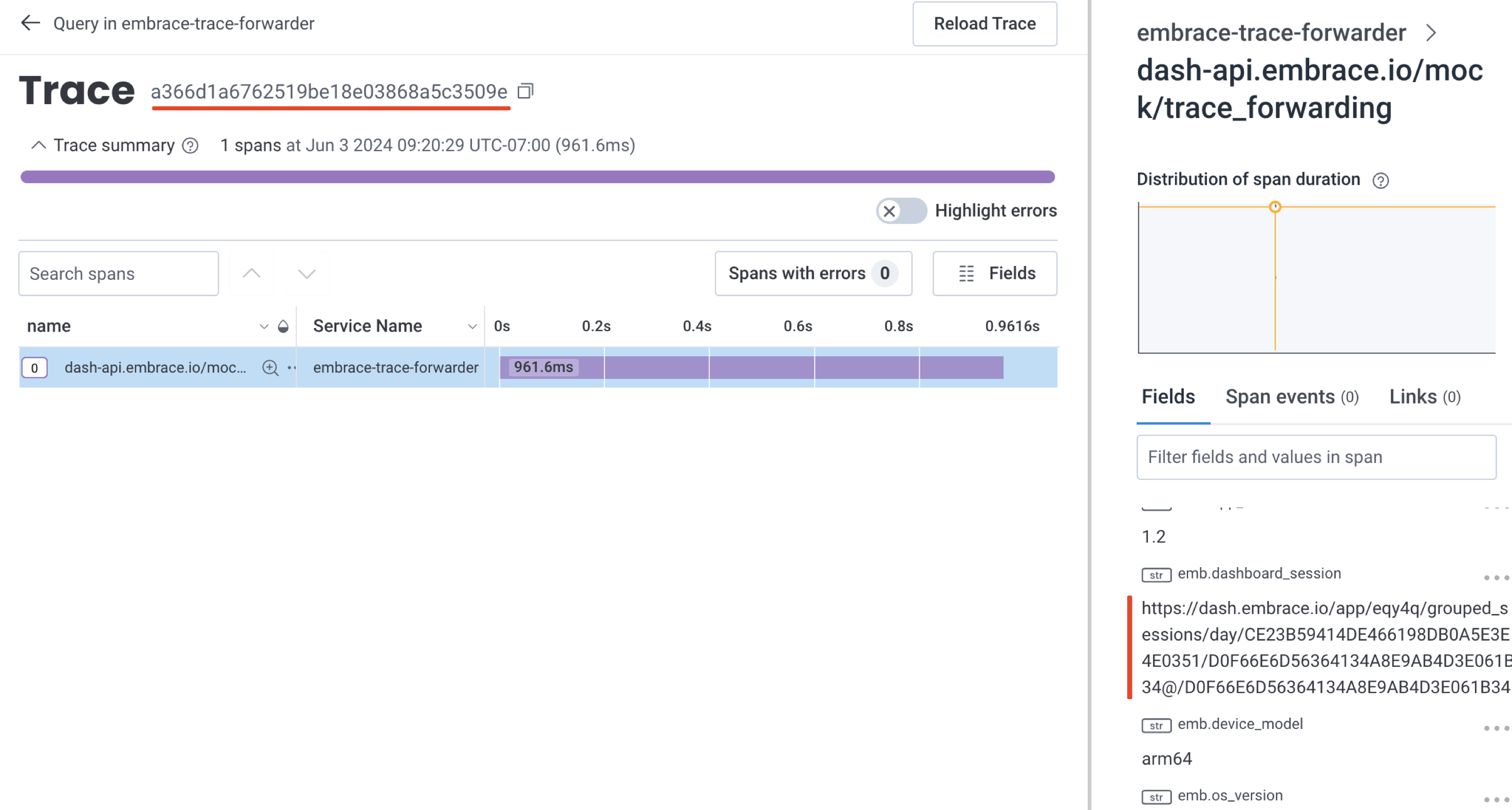
These traceparent identifiers automatically propagate through the traces products of Grafana Cloud, Honeycomb, Datadog, New Relic, Chronosphere, and other observability platforms. You can use the trace-id portion of the traceparent to find your forwarded traces in your destination product.
You can configure network spans forwarding yourself through the Embrace dashboard. The configuration is managed at the organization level for the apps with NSF enabled, so domain patterns and settings are shared across all your data destinations. Once enabled, the configuration is applied remotely in the Embrace SDKs, so you don't need to add any client-side instrumentation.
Forwarding conditions
Network spans are forwarded to your observability platforms when all three conditions are met:
- Your data destination is enabled for network spans - You enable forwarding for specific destinations in your NSF settings
- Your app has network spans forwarding enabled - You enable NSF for the apps you want to monitor
- The request domain matches your configured patterns - You specify which API domains to forward (for example,
api.example.comor.*\.stripe\.com)
Before you begin
Plan requirements
Network spans forwarding is available for:
- Enterprise plans
- Trial accounts (self-signup, managed, and internal use)
If you're on a Pro or Free plan, please contact support at support@embrace.io to upgrade to Enterprise.
SDK version requirements
Your app must be running a minimum SDK version to use network spans forwarding:
| Platform | Minimum version | Status |
|---|---|---|
| iOS | 6.0.0+ | Supported |
| Android | 5.25.0+ | Supported |
| Web | 2.2.0+ | Supported |
| React Native | iOS/Android versions | Supported |
| Flutter | iOS/Android versions | Supported |
| Unity | - | Not yet supported |
Data destination requirements
You must have at least one data destination configured before enabling network spans forwarding. Embrace supports forwarding to:
- Chronosphere
- Datadog
- Elastic
- Grafana Cloud
- Honeycomb
- New Relic
- Observe
- Splunk
Enable network spans forwarding
You can enable network spans forwarding from the settings page or directly from a network call detail page.
From the settings page
The Network Spans Forwarding settings page provides organization-level configuration that applies across all your data destinations. This means you define your domain patterns once, and they're shared across all enabled destinations.
- Navigate to Settings → Integrations → Network Spans Forwarding tab
- If you don't have any data destinations configured yet, click Edit Destinations to add and configure your destinations
- Under Apps, select which apps should forward network spans
- Under Domains, add domain patterns for the APIs you want to forward (you can use exact matches or regex patterns)
- Default sampling rates are set to 1% for production apps and 100% for development apps. To adjust these rates, contact support@embrace.io
- Click Save and Enable to activate network spans forwarding
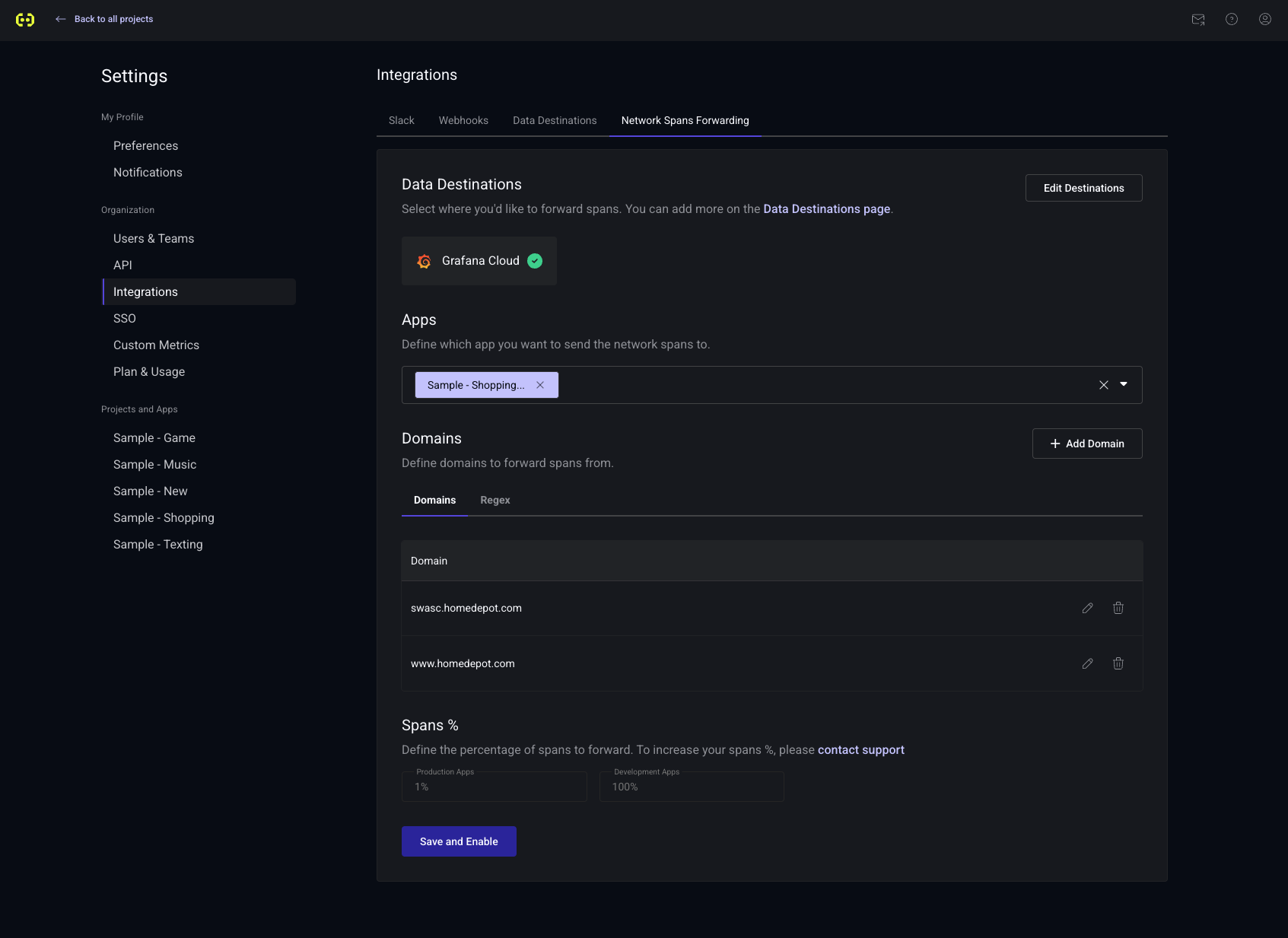
Your network spans will start forwarding to your selected destinations within a few minutes.
All configuration is managed at the organization level. Domain patterns, app selections, and destination settings are shared across your entire organization, making it easy to maintain consistent forwarding rules.
From a network call detail page
You can quickly enable network spans forwarding for a specific domain while viewing network call details:
-
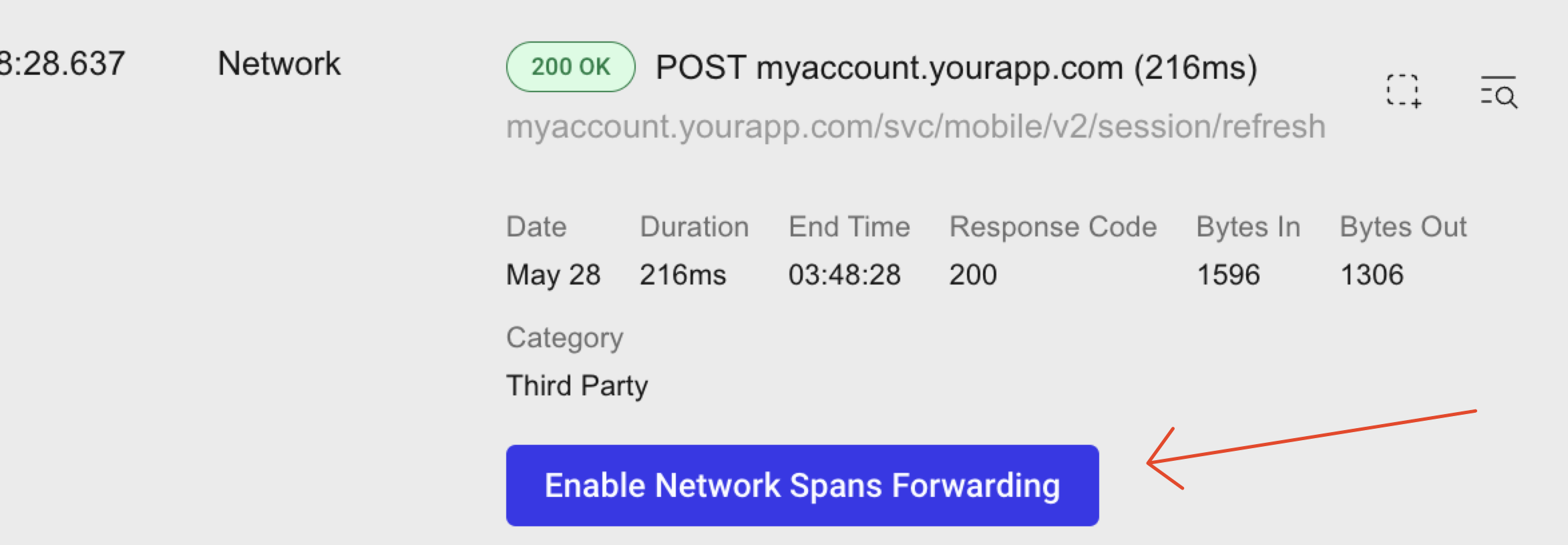
Open any network call in your session timeline or network path details page
-
Look for the Network Spans Forwarding banner
-
Click Enable Network Spans Forwarding
-
If you haven't completed the prerequisites, an onboarding modal appears with a checklist to guide you through:
- Setting up a data destination
- Verifying your SDK version meets requirements
- Configuring your first domain
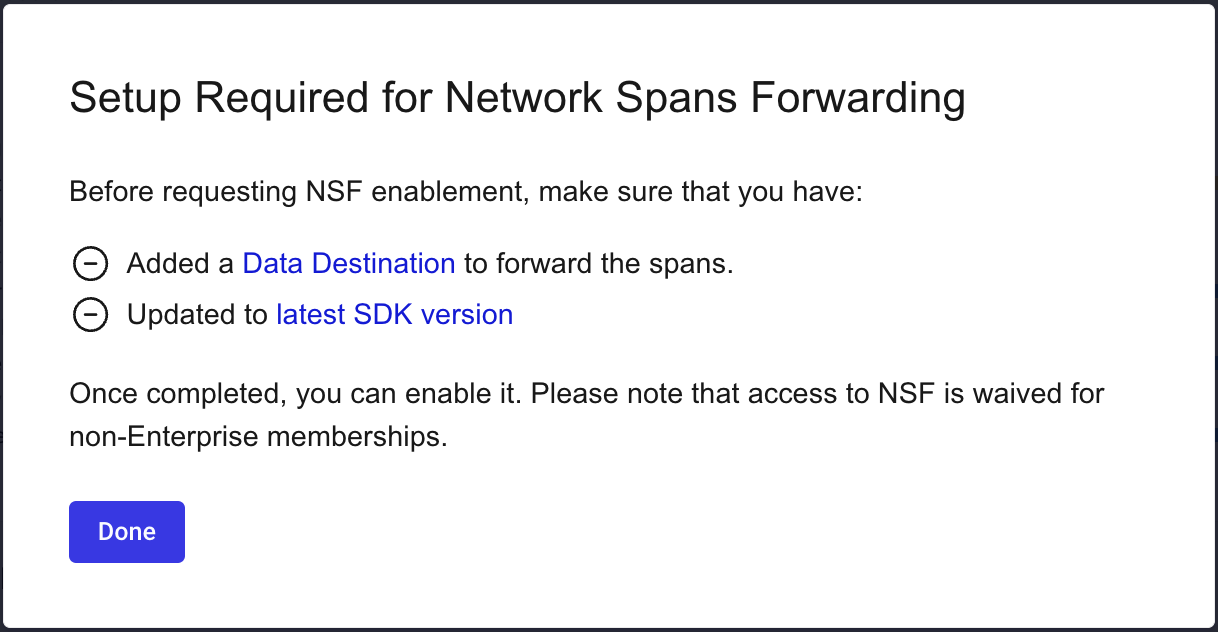
- Once all prerequisites are met, Embrace adds the domain to your organization-level configuration automatically
The banner disappears once the domain is configured and actively forwarding spans.
If this is your first time enabling network spans forwarding, the onboarding modal will walk you through all necessary steps.
Configure domain patterns
You control which API endpoints forward network spans by configuring domain patterns. Embrace supports two types of domain matching:
Exact match
Use exact matching when you want to forward spans for a specific domain only. The domain must match exactly (case-sensitive).
Example: api.example.com only matches api.example.com
Regex match
Use regex patterns when you need flexible matching across multiple subdomains or dynamic URLs.
Examples:
.*\.stripe\.commatches any Stripe subdomain (api.stripe.com,checkout.stripe.com)^prod-[0-9]+\.service\.com$matches numbered production services
Embrace automatically detects regex patterns when you use regex metacharacters like .*, ^, $, or [].
Manage span sampling
To control costs and data volume, Embrace samples the network spans sent to your observability platforms:
- Production apps: 1% of spans (default)
- Development apps: 100% of spans (default)
These sampling rates apply to all network spans from your app. If you need to adjust sampling rates, contact your customer success team.
Validate your configuration
After enabling network spans forwarding, you can verify that Embrace is successfully sending data to your observability platform.
Test your data destination connection
- Navigate to Settings → Data Destinations
- Find your configured destination
- Click the Test Connection button
- Embrace sends a test payload to verify the configuration
A successful test confirms that:
- Your API credentials are correct
- The destination endpoint is reachable
- Data is flowing to your observability platform
Check your observability platform
After configuration, network spans should appear in your observability platform within a few minutes. Look for:
- Spans with the
traceparentidentifier - Embrace-specific attributes (prefixed with
emb.) - The
trace-idfrom the w3c traceparent header
If you don't see data after 10-15 minutes, check the troubleshooting section below.
Troubleshooting
Network spans aren't forwarding
If your network spans aren't appearing in your observability platform, check these conditions in order:
1. Is the data destination enabled?
- Go to Settings → Network Spans Forwarding
- Verify your destination appears in the enabled destinations list
2. Is your app enabled?
- Check that your app is listed in the enabled apps section
- Verify you're testing with the correct app
3. Does the domain match your patterns?
- Review your configured domain patterns
- Test that your API domain matches at least one pattern
- Remember that exact matches are case-sensitive
If you configured api.example.com as an exact match, requests to API.example.com or api.example.com:8080 won't match. Use regex patterns for more flexible matching.
Enable button isn't showing
The enable button appears only when all prerequisites are met:
- You have an Enterprise plan or trial account
- You have at least one data destination configured
- The domain isn't already configured
- Your app isn't a Unity app (not yet supported)
- The request isn't to a local or private IP address
The enable button is hidden for requests that don't need network spans forwarding configuration:
- Local development domains:
localhost,127.0.0.1,0.0.0.0,::1,*.local - Private/non-routable IP addresses:
192.168.x.x,10.x.x.x,172.16.x.xthrough172.31.x.x
These addresses are used for local development and internal networks, so they don't require forwarding to external observability platforms.
Domain pattern isn't matching
For exact matches:
- Verify the domain matches exactly, including case
- Check for extra characters like ports (
:8080) or paths (/api/v1)
For regex patterns:
- Ensure your pattern uses valid regex syntax
- Test your pattern includes the necessary regex metacharacters (
\,^,$,.,*,+,?,(),[],{},|) - Remember to escape special characters (for example,
\.to match a literal period)
Analyze metadata
Embrace forwards metadata associated with each network call, letting your backend team use their observability tools to set up analyses and monitoring. Here are all the attributes and resource attributes that a span will include with examples.
Span attributes
emb.app_id: "abcde"emb.app_version: "2.2.0"emb.country_iso: "US"emb.dashboard_session: "https://dash.embrace.io/app/abcde/grouped_sessions/day/45919F47E2AC4E0BA074110A6414F083/FEC3F288397343E9BC2F77870F01965A@/FEC3F288397343E9BC2F77870F01965A"emb.device_model: "arm64"emb.device_id: "45919F47E2AC4E0BA074110A6414F083"emb.os_version: "26.1"emb.region: "Washington"emb.sdk_version: "6.14.1"http.request.method: "POST"http.response.status_code: 200http.route: "/mock/trace_forwarding"http.status_code: 200url.domain: "example.com"url.path: "/mock/trace_forwarding"url.full: "example.com/mock/trace_forwarding"traceparent: "00-b543b5ba9576c535b3b6221a26bd763e-4283ddf8e9996b0f-01"device.manufacturer: "Apple"device.model.name: "arm64"
Resource attributes
deployment.environment.name: "prod"emb.app_id: "abcde"emb.os: "iOS"service.name: "embrace-mock-app"service.version: "1.0"telemetry.sdk.language: "go"telemetry.sdk.name: "opentelemetry"telemetry.sdk.version: "1.38.0"
FAQ
Can I forward network spans for all my API calls?
Yes. You can add multiple domain patterns to cover all your backend services. If you need to forward everything, you can use regex patterns like .* to match all domains, though we recommend being selective to control costs and data volume.
What happens if I remove a domain pattern?
Embrace immediately stops forwarding spans for that domain. Historical data already sent to your observability platform remains unchanged.
Can I use different domain patterns for different destinations?
Currently, domain patterns apply to all enabled destinations. All destinations receive spans for the same set of configured domains.
How do I know if network spans forwarding is working?
You can validate your configuration in two ways:
- Use the Test Connection feature on your data destination configuration page to send a test payload
- Check your observability platform for incoming span data within 10-15 minutes
See the "Validate your configuration" section above for detailed steps.
What if I'm not on an Enterprise plan?
Network spans forwarding is an Enterprise-only feature. If you're on a Pro or Free plan, you'll see a prompt to contact your customer success manager when you try to enable NSF. Your CSM can help you upgrade to Enterprise or discuss trial options.
What's the difference between network spans and other network data in Embrace?
Network spans are OpenTelemetry traces that capture the full context of network requests, including timing, headers, and relationships to other spans. This data is specifically formatted for observability platforms. Embrace also captures network metrics and errors for display in the Embrace dashboard, which are separate from forwarded spans.