Test Scripting
What are synthetic test scripts?
You can add scripts to the URLs you test. When you edit a Site in your Settings, there's a script icon next to each URL that allows you to add scripts.
With synthetic scripts you're able to do all sorts of things, such as add headers, set cookies, step through a number of pages, or perform actions on a page like logging in or adding an item to a shopping cart.
See the scripting reference for example scripts and usage.
Scripting caveats
There are a few things to be aware of when writing synthetic scripts for Embrace:
Results must contain a single step
More complex scripts will sometimes end up generating results with multiple steps.
Embrace will not be able to parse these results, because it does not know which step to use as the final result. Use the log data command to isolate the specific step you want to be displayed in Embrace. You can avoid generating multiple steps by putting combineSteps at the top of your script.
setEventName command is not supported
The setEventName command creates an extra step in the test results, which Embrace cannot parse (see above). You should avoid using this command in your scripts.
Synthetic scripts don't work in Lighthouse
Lighthouse doesn't support the majority Embrace synthetic scripting. The only commands currently supported are setHeader and navigate. You can pass any headers required for cookies or authentication via setHeader. The URL tested in Lighthouse will be the last URL specified via a navigate command.
Script templates
There are a number of script templates available that will generate a script for you using the URL field.
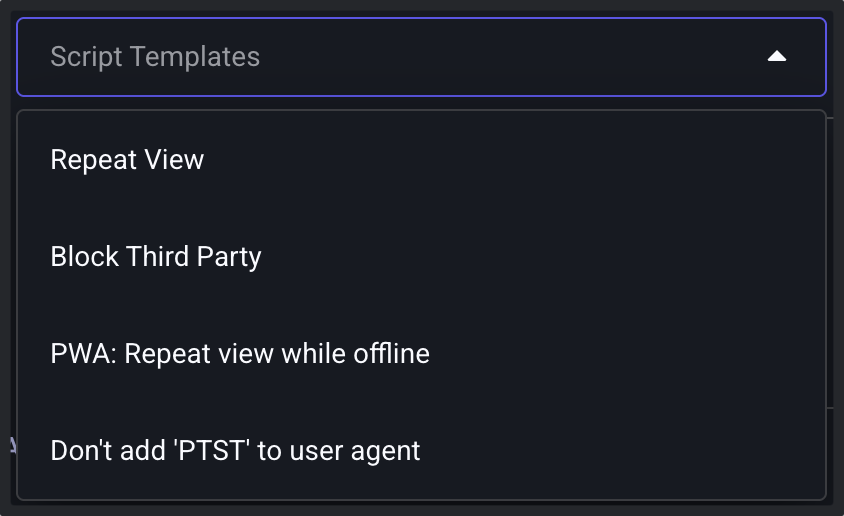
Repeat view
Loads the page a second time allowing you to measure the cached performance of the page.
Block third party
Only allows requests for the first party domains listed. Great for blocking all third party requests to ad providers, analytics tags etc. so you can measure the performance of the assets you control. Once you add the script you can manually edit it to add more space delimited first party domains if needed.
PWA: Repeat view while offline
PWAs are great for delivering content while offline. This script loads your PWA, then blocks all network requests and reloads the page again allowing you to check what the offline performance is like and ensure that the user experience is still rendering via the filmstrips.
Don't add 'PTST' to user agent
Some ad providers block all requests that include "PTST" in the user agent . This can skew your metrics if you want to test the full page load including ads. This script adds "speedcurve_removePTST" which does what it says on the tin.
Extra Embrace script options
speedcurve_removePTST 1
We've added support for preserving the user agent string and not adding "PTST". Some ad providers block all requests which include "PTST" in the user agent and this can skew your metrics if you're wanting to test the full page load with ads. To remove "PTST" from the user agent string you can add "speedcurve_removePTST", a tab, and then "1" to your script to remove it.
speedcurve_clearcerts 1
Clears the OS certificate caches which causes IE to do OCSP/CRL checks during SSL negotiation if the certificates are not already cached.
Scripts not working?