Filtering Sessions
Filtering Sessions
Embrace provides an easy UI for filtering and querying your Sessions. You can add filters to your sessions to find and group the Sessions that you are looking to find out more about: Sessions that resulted in crashes, Sessions with specific user flows, Sessions on certain app versions.
Sessions are displayed from most recent, with summary statistics, issue indicators, and background/foreground context.
Sessions List
The sessions list presents a chronological compilation of all user sessions. You can easily identify sessions with crashes, ANRs (App Not Responding), or network issues, and filter them by user ID, device, app version, and more.
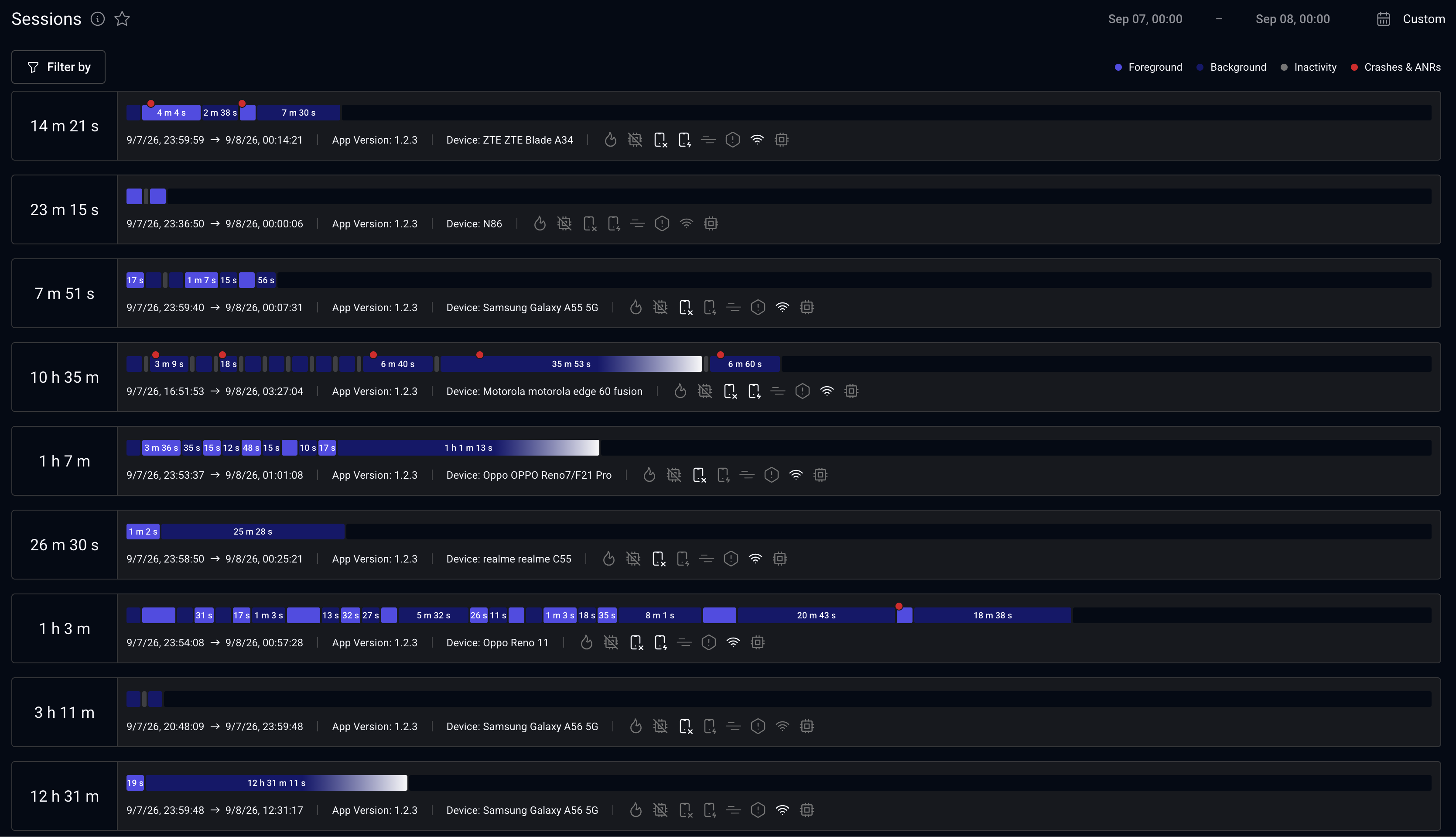
Click on any session to delve into the User Timeline.
Filter dimensions
To find Sessions matching specific conditions, Embrace provides a variety of fields for filtering.
Major dimensions include properties for:
- App
- Device
- User
- Session Parts
- Spans
- Logs
- Crashes
- ANRs
Advanced Filters
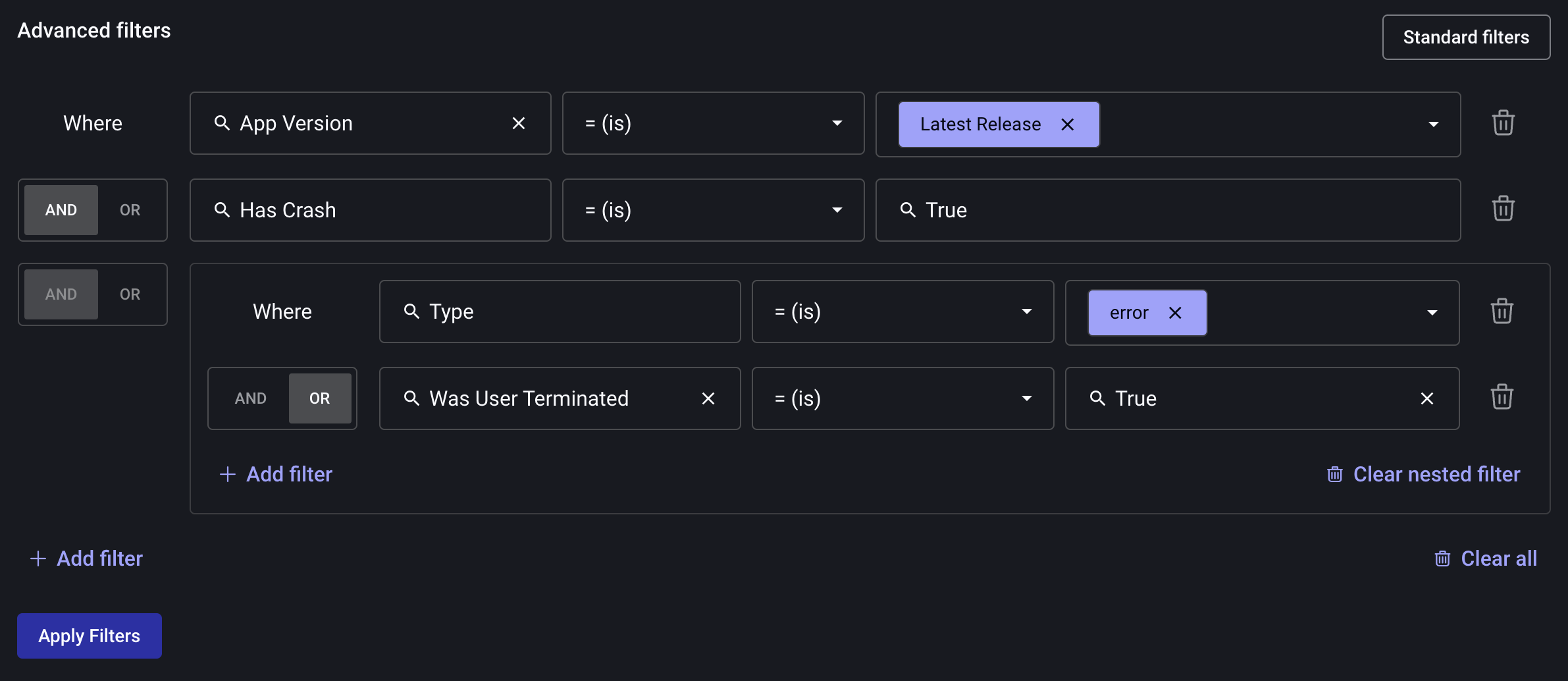
To combine various logical conditions, you can use Advanced Filters. Advanced filters allow you to chain logical statements, using AND or OR. These statements are composable: you can also nest components, chain nested components, and nest chained components.
Saved Filters
Embrace supports a Save function for filters you repeatedly use. Use the "Saved Filters" button next to the filter bar to save a current filter or apply saved filters:
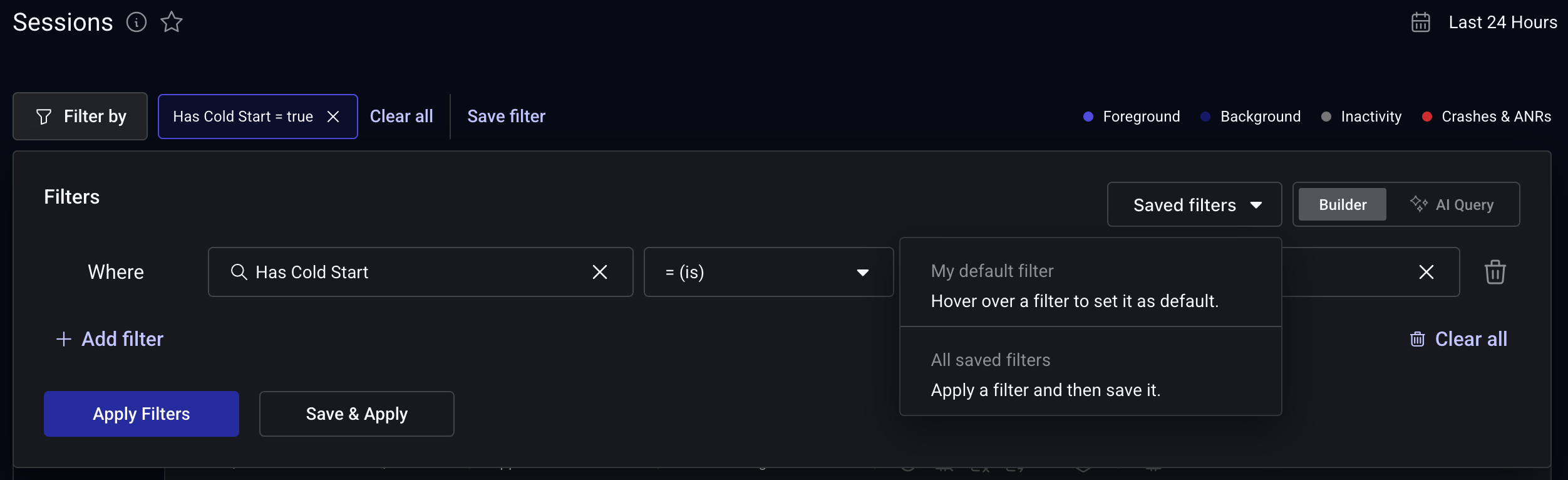
A filter can be made default for immediate use every time you visit.
Session properties are ubiquitous
Anything stored as a property on the Session Part is automatically associated with events in the same session part. So when filtering for Crashes, Logs, Spans, etc look for the dimensions Session Part Property Key and Session Part Property Key/Value. This will allow you to find Crashes on Session Parts tagged to (eg) "premium" users.