Page Labels
Grouping pages by their type or the template they use makes Web Vitals data more actionable and filters easier to use.
By default pages are grouped by their title – document.title – but we recommend creating your own Page Labels to group pages in a way that makes sense for your site or app. A retailer might choose Home, PLP, PDP etc, or a news publisher Home, Section, Article, Video article etc. for their page labels.
Page Labels are supported by SDK v2.14.0 or later.
Creating Page Labels using URL Patterns
Using URL patterns allows you to create and update Page Labels without making code changes or redeploying your site or app.
Open the settings for your App and click on the Page Labels tab.
The rules are evaluated in the order they are listed so the most specific rules should be at the top of the list.
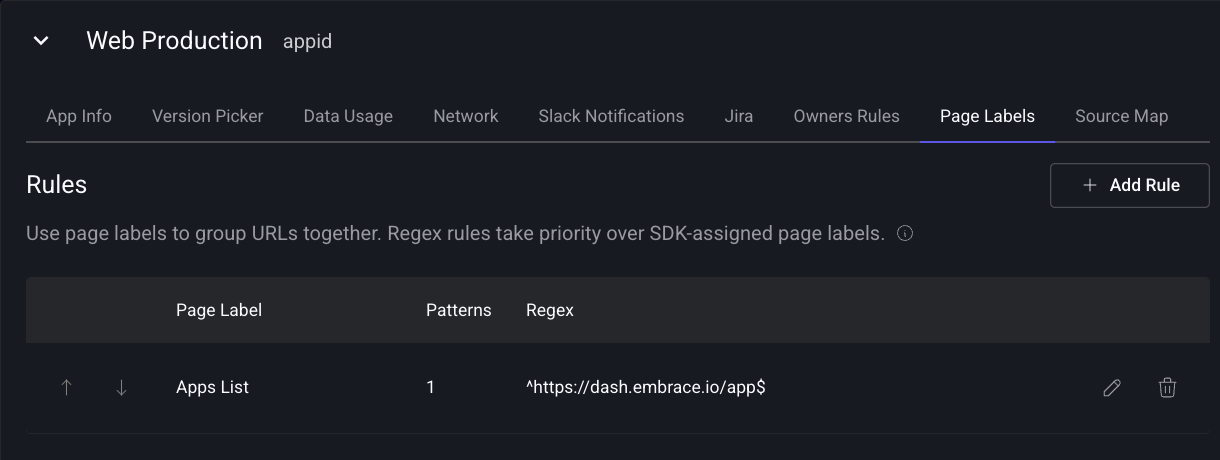
Adding a New Label
Add Rule allows you to create more Labels.
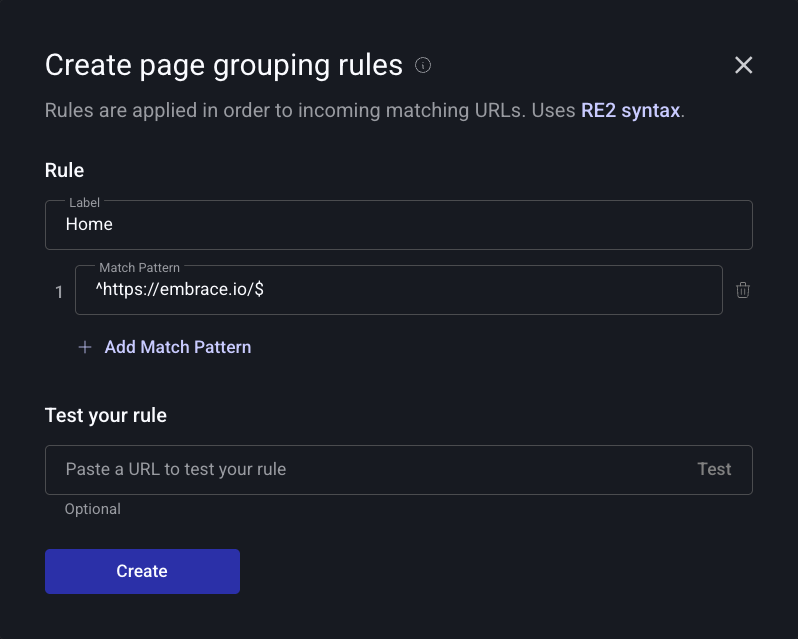
Each rule must have a Page Label name and at least one matching pattern.
Patterns are defined using RE2 syntax and each page label can have multiple matching patterns.
Checking Regex Patterns
You can test patterns by adding a URL to the field at the bottom of the dialog and pressing the Test button.
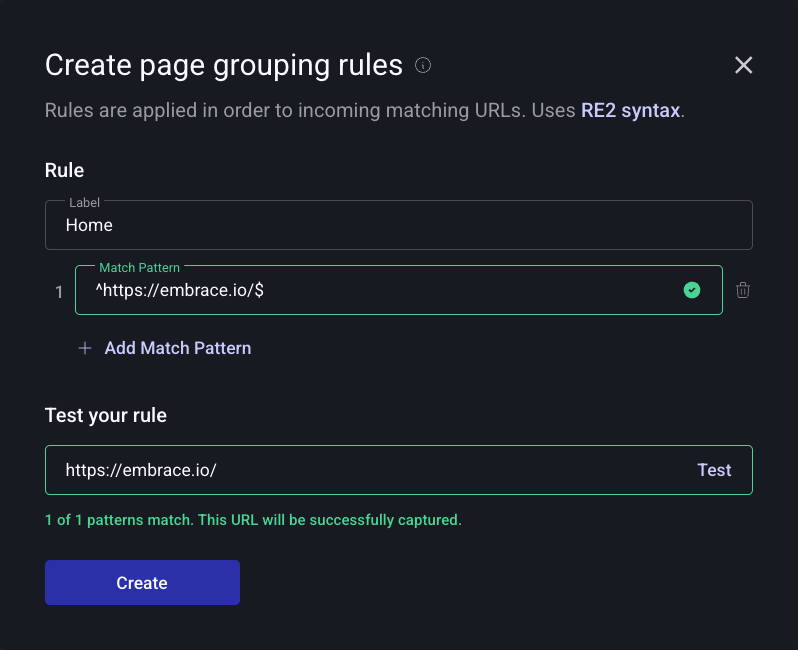
Patterns are evaluated when the RUM data is ingested and labels are immutable once ingested.
Only the protocol, domain and path components of a URL are used when matching labels, any query string or fragment is ignored.
Creating Page Labels via the SDK
Page Labels can also be set directly via the SDK. URL based rules will take precedence over SDK set ones.
    pageManager.setPageLabel('my-custom-label');
    pageManager.setCurrentRoute({ label: 'my-custom-label', path: '/products/:productId', url: '/products/123' });