Network Monitoring


Mobile apps often fail before a request ever reaches the backend. This guide walks through how to debug client-side network issues like connection errors, 4xx bugs, and timeouts using real user sessions, with practical examples you can follow step by step.
If you’ve ever debugged a slow screen, a stuck loading spinner, or a user complaint like “the app just wasn’t working,” then you’ve already felt the limits of backend-only monitoring.
Here’s the reality:
Most mobile network failures happen before a request ever reaches your backend.
Users don’t experience logs — they experience timeouts, network transitions, invalid requests, missing auth, offline states, and retry storms that occur entirely on the device.
This guide walks through the foundational steps for understanding those failures using Embrace’s client-side network monitoring, paired with short demo clips so you can follow along.
Let’s get started.
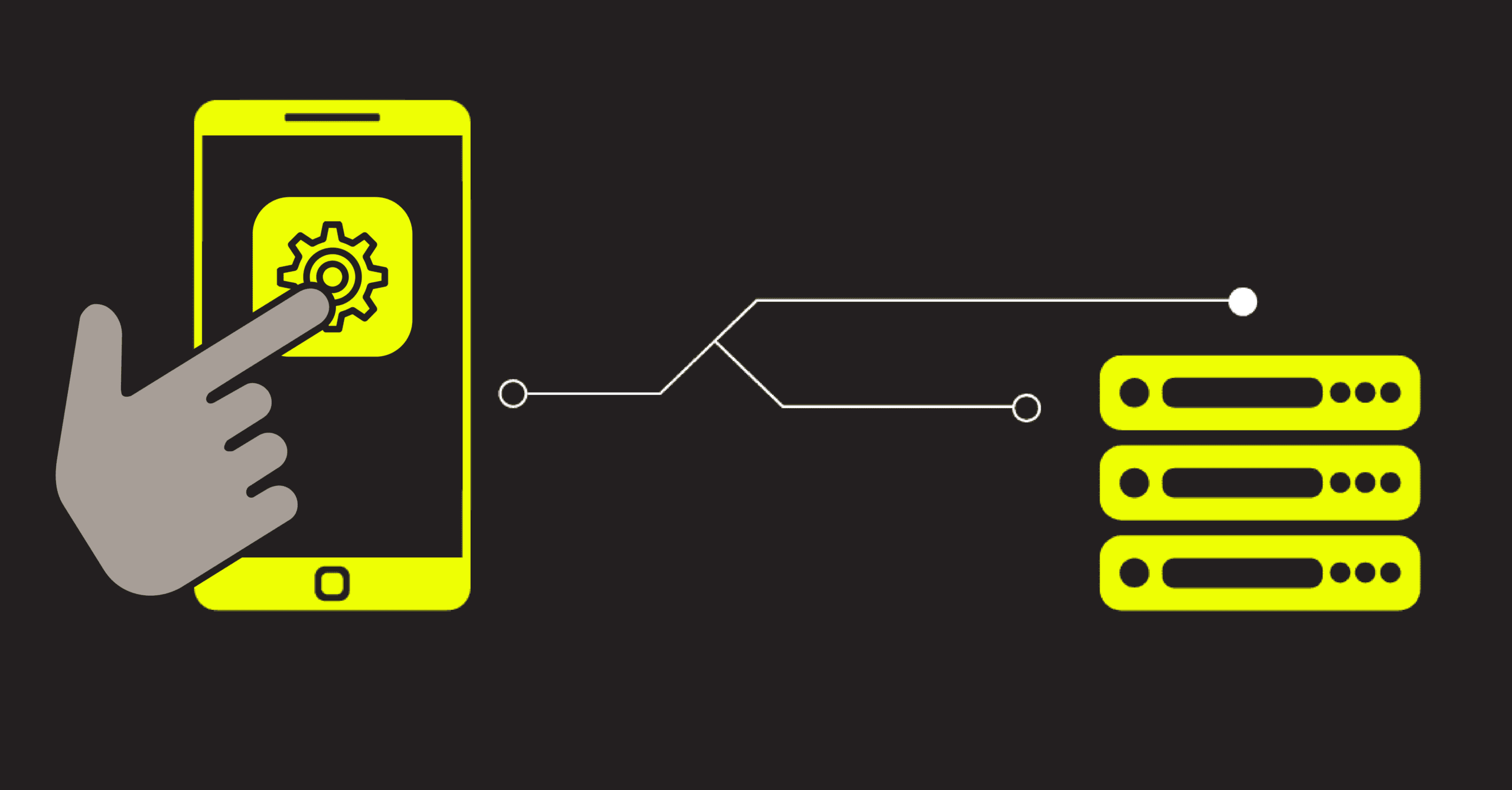
Before jumping into tooling, it helps to understand what backend monitoring misses.
Mobile apps can fail before reaching your server due to:
These failures never appear in backend logs. Client-side monitoring shows what the device actually experienced.
This is the starting point for reliable debugging.
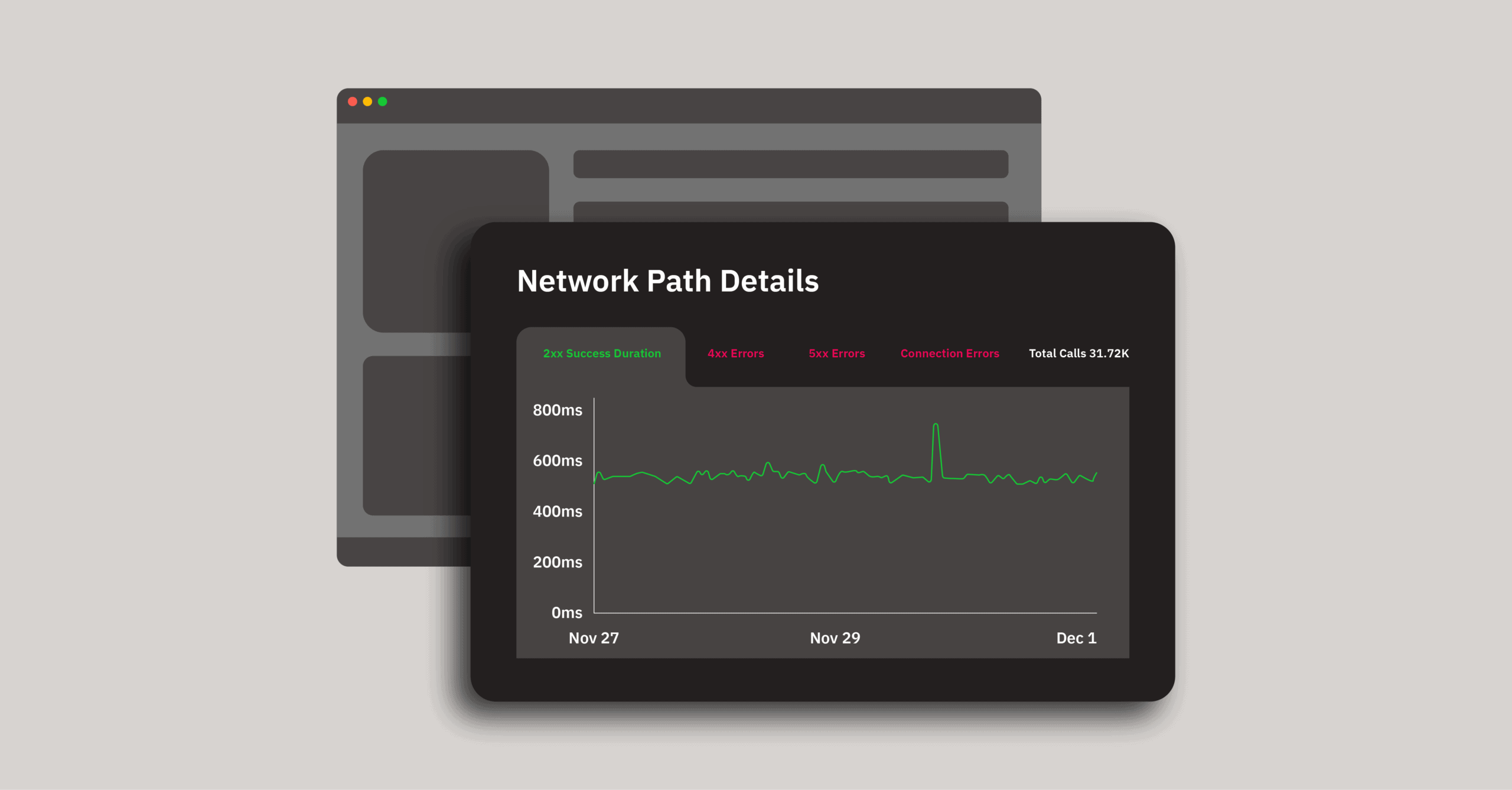
In the Embrace sandbox, we start with a real endpoint from the National Parks API. The network dashboard gives you an instant high-level view:
The biggest insight for beginners?
You immediately see failures that backend tools never surface — like connection errors, which are often the majority.
This is the single best place to begin when learning client-side networking.
A connection error means the request never reached the server.
No backend log will ever capture it.
These happen when users:
This is the first major “aha” moment: backend monitoring cannot help you understand these failures at all.
Next, dig into 4xx failures — especially 403 forbidden.
These typically come from issues in the app:
This is one of the fastest ways to spot a regression right after shipping a new version.
5xx errors matter, but they’re only meaningful when you understand them in context.
The key distinction you learn here:
Embrace surfaces all three in one view, which removes the guesswork from triage.
(Included within the next combined clip — see Step 6)
Timeout mismatches are one of the easiest ways to create terrible user experience:
Mobile timeout = 60 seconds
backend timeout = 30 seconds
The result? Your user waits an extra 30 seconds before anything happens.
In the demo, many calls timeout after ~60 seconds — a dead giveaway of a mismatch.
This clip teaches:
As you get more comfortable, use the built-in tabs to segment:
This makes it easier to find patterns by:
This step is simple, but essential for flow.
This is where client-side monitoring becomes a superpower.
The Session Timeline shows:
For teams just getting started, this is the moment debugging becomes fast, clear, and contextual.
To stay proactive (and avoid noise), set alerts based on session impact, not raw error counts.
Good examples:
This keeps alerts actionable and tied to actual user experience — not just infrastructure noise.
Here’s what matters most as you introduce client-side network monitoring:
Start with what users feel.
Timeouts, network transitions, and offline scenarios are invisible to backend logs but obvious in the UI.
Tackle failures by category.
Connection errors → 4xx → 5xx → timeouts.
Use sessions for root cause.
You debug faster when you can see the full user journey.
Alert on user impact, not infrastructure volume.
This cuts alert fatigue and surfaces real issues.
Once you get comfortable with these fundamentals, you’ll be able to move into end-to-end tracing, version diffs, and workflow-level monitoring.
Want to follow along step by step?
Full video: Getting started with client-side network monitoring
 Deliver incredible mobile experiences with Embrace.
Get started today with 1 million free user sessions.
Get started free